Step 1 : How to use your Tap&Up card :
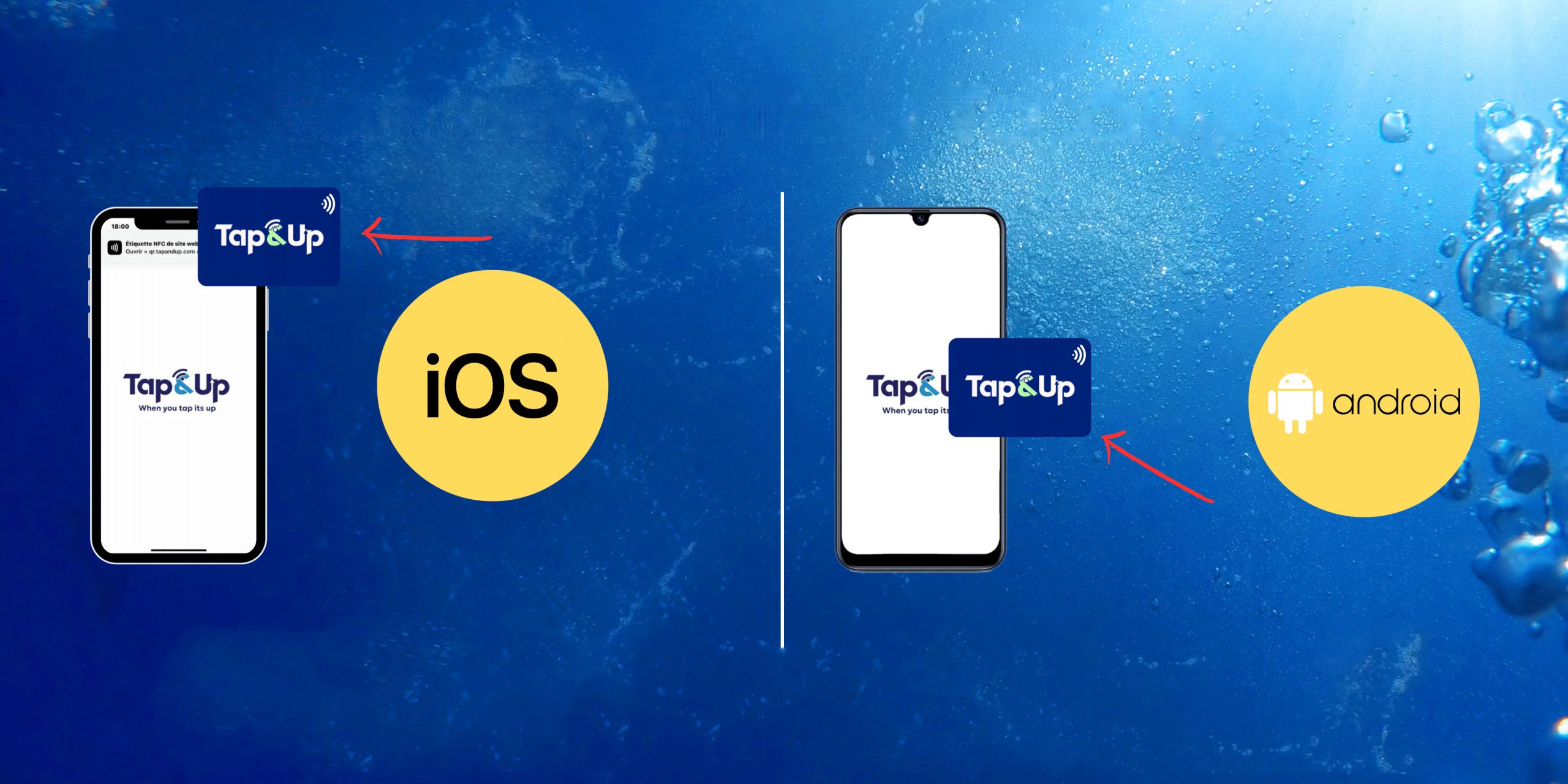
1 - Bring your card closer to the sensor NFC (At the top of your device).
2 - Click on The link🔗which will be displayed as a notification.
And there you go, your coordinates will be displayed.
If your Tap&Up card is not working, here is a step to follow :
Step 2 : NFC activation.
1 - Open the app « Settings ⚙ » on your iPhone.
2 - Scroll through the list of options and look for the option « NFC». Note that only iPhones equipped with NFC (iPhone 7 and later versions) will have this option.
3 - Tap on the switch next to the option « NFC » to enable it. (The switch will turn green to indicate that NFC is enabled.)
After enabling the « NFC », try again with Step 1.
Step 1 : How to use your Tap&Up card :
1 - Bring your card closer to the sensor NFC (at the center of your device).
2 - Click on The link🔗that will be displayed, by selecting one of the installed browsers on your device.
And there you go, your coordinates will be displayed.
If your Tap&Up card is not working, here is a step to follow :
Step 2 : NFC activation.
Method 1 :
Status bar > button order > Add NFC > Click on NFC once to enable it.
Method 2 :
1 - Open the app « settings ⚙ » on your Android smartphone.
2 - Scroll through the list of options and look for the option « Connections » or « Wireless and networks ». (The exact placement may vary depending on the version of Android and the user interface of your smartphone.)
3 - In the Connections settings, look for the option « NFC » and click on it
4 - Tap on the switch next to the option « NFC » to enable it. (The switch will turn green to indicate that NFC is enabled.)
After enabling the « NFC », try again with Step 1.



 English
  French
  Spanish